How to Use Password Manager: Set Up Your Vault Safely
By the ReportDoor deskUpdated November 29, 202616 min read
In short
Learn how to use password manager tools in 2026: set up your vault, replace reused passwords, sync devices and plan recovery early.
In 2024, 92% of more than 1,100 surveyed IT and cybersecurity leaders moderately or strongly agreed that password managers were essential to their organization's cybersecurity strategy, according to Bitwarden's Cybersecurity Pulse Survey conducted with Researchscape International. Cost doesn't explain why so many individuals still delay setup either, since 79% of U.S. password-manager users chose a free option in 2024, per the Security.org study reported by Digital Information World.
The gap isn't awareness or price. People stall at the import screen, leave duplicates uncleaned, or skip backup planning because they treat setup as an app download instead of a staged migration. Learning how to use a password manager safely comes down to a clear sequence: setting up the vault, building a tested recovery path before moving critical logins, migrating accounts in risk order, and keeping daily autofill habits intact.
Table of Contents
- What the Vault Does and What You End Up With
- How to Set Up the Vault Step by Step
- Planning Recovery Before You Need It
- Which Accounts to Migrate First
- Making It Work Across Devices and Browsers
- Fixing the Problems That Appear After a Month
- Your First Week With the Vault
What the Vault Does and What You End Up With
Compromised credentials served as an initial access vector in 22% of the breaches reviewed in Verizon's 2025 Data Breach Investigations Report. Verizon explains credential stuffing as an attack where adversaries run lists of previously leaked usernames and passwords against another organization's login screen. A password reused across two sites turns a minor retail leak into an entry point for email or banking, a pattern tracked across ReportDoor's data breach statistics.
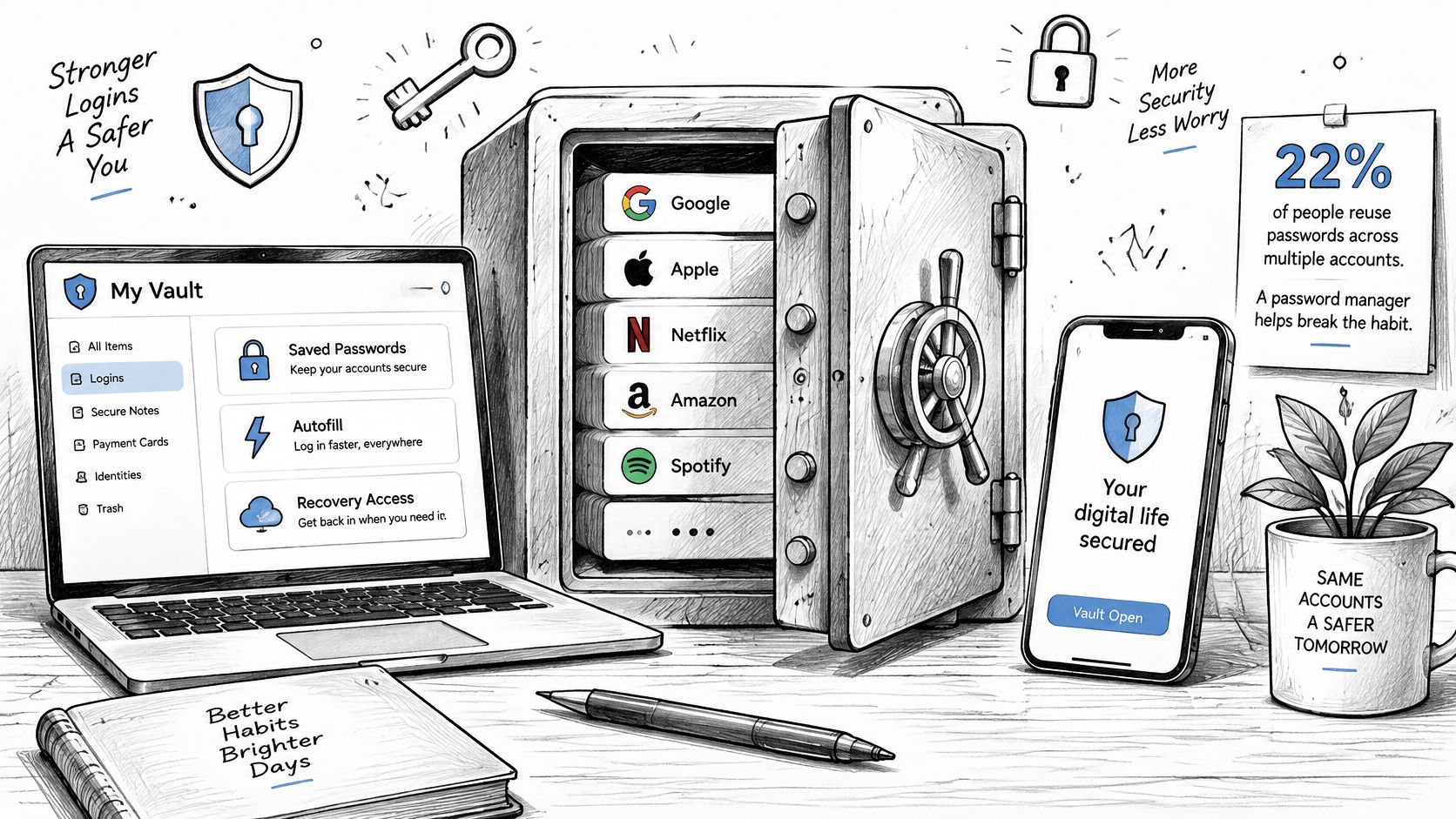
A password manager separates credentials into two distinct layers. The first layer is the primary password (often called a master password), which opens the encrypted database. The second layer holds the individual, unique logins for every website and app stored inside that database.
How the Vault Replaces Memory
The NIST Digital Identity Guidelines FAQ describes password managers as tools that maintain separate passwords for individual services inside a local or cloud-based vault, increasing the likelihood that users pick stronger credentials when a built-in generator does the work. Instead of inventing memorable variations like Summer2024! and Summer2025!, an account holder lets software produce random strings and recalls only the single primary passphrase.
A finished vault isn't an empty app sitting on a home screen. It's one memorized primary passphrase, a unique generated password on every critical login, working autofill on one browser and one phone, and a printed recovery kit stored offline.
Setting realistic expectations prevents early abandonment. Blocking off a single quiet evening allows a user to finish the first pass, starting with the top priority accounts in the opening stretch before touching minor logins. This walkthrough focuses strictly on workflow and daily habits rather than ranking which commercial vendor to buy.
How to Set Up the Vault Step by Step
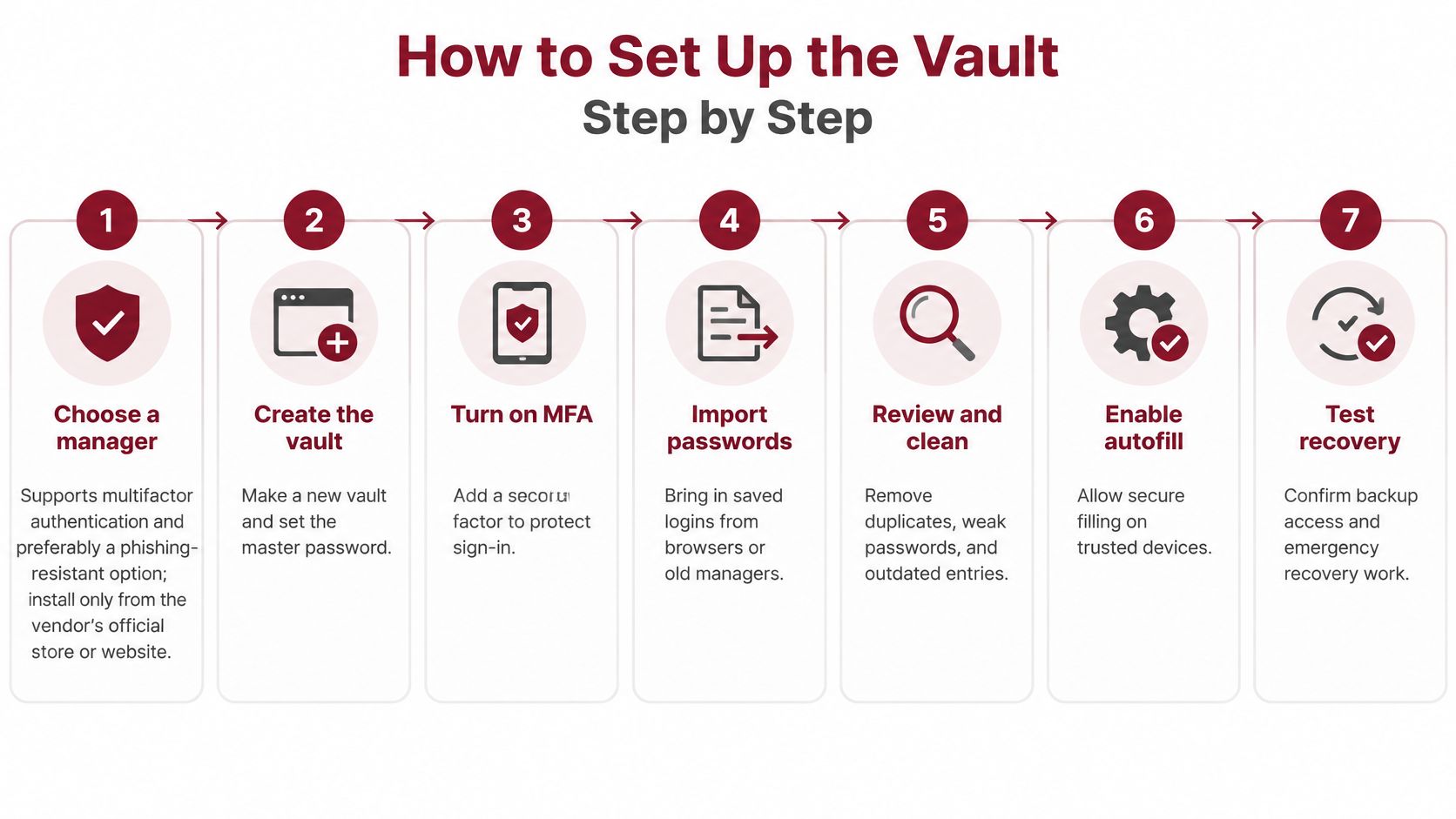
Installing the software takes minutes, yet rushing the sequence creates blind spots that linger for months. The NIST guide on creating a good password treats a password manager as a controlled migration and warns that the vault's own login protects every stored entry. Pairing that sequence with the Federal Trade Commission's strong password advice gives a clean seven-step rollout.
The visual sequence below maps out the seven stages from initial provider selection through offline recovery verification.
Seven Steps From Clean Install to Tested Backup
- Select a manager with multifactor authentication and install from official sources. Pick a vendor such as 1Password, Bitwarden, or KeePassXC that supports multifactor authentication (MFA), favoring a phishing-resistant hardware key or passkey option where offered. Download the app strictly from the vendor's website or an official mobile store rather than search-ad links; readers evaluating auditable codebases can review ReportDoor's open-source password manager comparison. Failure prevented: Installing a spoofed installer or choosing a vault without second-factor protection leaves every imported login exposed to a single stolen passphrase.
- Create one long, unique primary password. NIST treats 15 characters as a practical minimum for manually created passwords, while the FTC advises at least 12 characters wherever a service allows it. Build a random multi-word passphrase never used on any other account. Failure prevented: Reusing an old email password as the primary vault key allows a prior site breach to expose the entire vault.
- Turn on MFA for the manager account immediately. Open the vault's security settings and register an authenticator app (such as Ente Auth or Aegis) or a FIDO2 hardware key before importing a single login. Failure prevented: Adding credentials first leaves the account briefly guarded by a password alone while the user finishes configuration.
- Install the browser extension and mobile app, then enable autofill. Add the extension inside the primary desktop browser (Chrome, Firefox, Safari, or Edge), sign into the mobile app, and switch on system autofill under the phone's password settings. Failure prevented: Leaving autofill off forces manual copy-and-paste on every site, which quickly drives users back to browser-saved logins.
- Import existing logins and clean the clutter. Export saved entries from the browser as a CSV file, run the vault's importer, and immediately merge duplicates and remove dead accounts. Open the Downloads folder and permanently delete the plaintext CSV file, then clear the browser's built-in password store only after confirming the vault holds the same entries. Failure prevented: Leaving a CSV file on disk exposes every login in unencrypted text, while skipping cleanup fills the security dashboard with false warnings for months.
- Run the built-in generator across reused or weak logins. Configure the generator for maximum length accepted by each website, avoiding forced symbol quirks that break old login forms unless the site requires them. Failure prevented: Moving old reused passwords into a vault without regenerating them only organizes existing exposure without reducing risk.
- Store recovery codes offline and test them. Print or write down the vendor's recovery code and two-factor backup codes on paper, store them outside the vault, and verify that recovery works before deleting any old password list. Failure prevented: Keeping recovery codes solely inside the encrypted vault means losing vault access destroys the only key.
The short video walkthrough below demonstrates how a typical vault interface handles initial configuration, extension setup, and password generation in practice.
Clearing Browser Storage Without Losing Access
Browser sync tools often ask to save credentials even after a dedicated extension is active. Inside Chrome (Settings > Autofill and passwords > Google Password Manager) or Firefox (Settings > Privacy & Security > Logins and Passwords), turn off "Offer to save passwords" and "Auto Sign-in." That single toggle stops the browser and the vault extension from fighting over login pop-ups on every page.
Planning Recovery Before You Need It
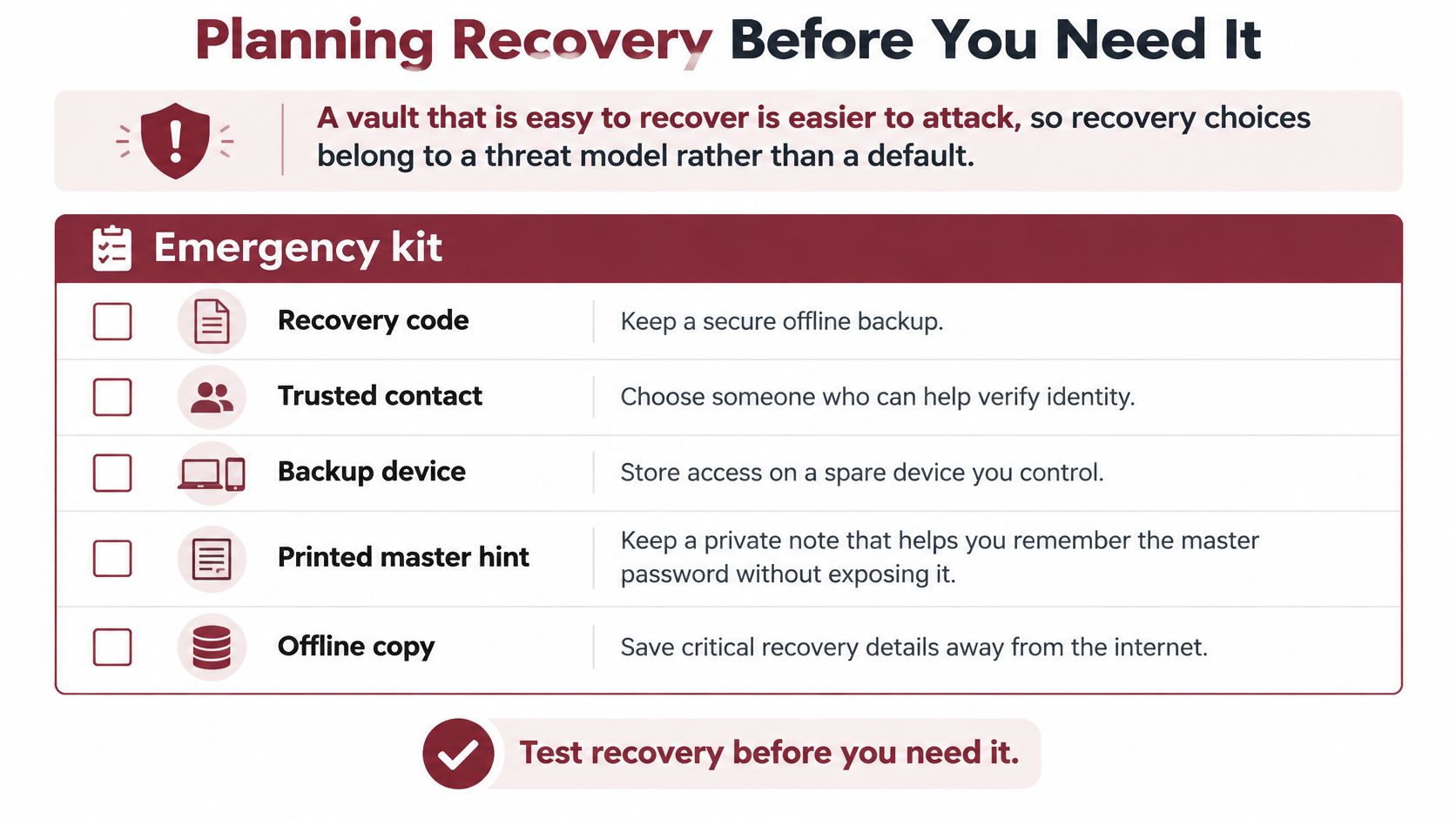
Every recovery option introduces a direct trade-off. A vault that's easy to restore after a lost phone or forgotten passphrase is also easier for an attacker to target through social engineering or stolen paperwork. Recovery settings shouldn't stay on vendor defaults; they need to match the actual threat model of the person or group holding the vault.
The checklist below outlines the physical and digital pieces that belong in a baseline emergency kit before the vault holds high-value logins.
What Belongs in the Emergency Kit
A practical printed kit separates vault restoration from individual website logins so an outage doesn't cascade across accounts:
- Vendor recovery code: The one-time reset token or secret key generated by providers like 1Password or Bitwarden during account creation.
- Primary password in a sealed envelope: Written cleanly once on paper and stored in a locked home safe or bank deposit box, never photographed on a phone.
- Two-factor backup codes: The single-use override codes for the vault's own MFA method, kept offline alongside the recovery key.
- Vault account email address: The exact sign-in email tied to the password manager subscription, especially when a user maintains multiple aliases.
- Authorized device note: A short line naming which laptop or tablet holds an active, trusted vault session capable of approving a replacement device.
Keeping a second trusted device signed in changes how emergencies play out. When both a smartphone and a laptop stay authorized, dropping the phone in water doesn't trigger an account lockout; the laptop remains open and can approve the replacement handset.
Recovery Workflow by Threat Model
Different users face different failure scenarios, from a solo traveler losing a bag to a small firm losing an administrator.
| Threat model | Typical vault setup | Recovery method | Main trade-off |
|---|---|---|---|
| Solo user | Cloud-synced vault on phone and laptop | Printed recovery kit plus a second trusted device that can approve a new phone | Recovery codes must stay offline |
| Family | Shared vault with an emergency contact | Emergency contact access configured before it is needed | Contact access widens who can reach the vault |
| Freelancer with client credentials | Separate client vault | Named backup holder for client logins | Recoverability must not outrun client agreements |
| Small team | Organizational vault | Admin recovery path with at least two administrators | Admin recovery is a high-value attack surface |
Testing Recovery Safely and Preparing for Passkeys
A recovery plan that hasn't been tested is a guess. To verify it safely, stay signed in on the laptop, sign completely out on the phone (or a secondary browser), and sign back in using the written primary password and printed backup details without resetting the account. If a character was misread or a code is missing, the active laptop session fixes it in minutes instead of causing permanent lockout.
Reality check on passkeys: Recovery is becoming the defining feature of credential vaults, not an optional extra.
A 2025 academic review covered by PCMag UK's passkey adoption report found that 53.7% of the top 300 domains support passkeys, and most implementations rely on end-to-end-encrypted credential backups. Because availability and restoration remain unresolved friction points in passwordless setups, verifying encrypted backup access today protects both passwords and passkeys tomorrow.
Which Accounts to Migrate First
Trying to fix two hundred old logins in one afternoon is the fastest way to abandon a vault. Starting with the highest-impact accounts delivers real protection on day one, even if dozens of minor accounts wait for later.
| Tier | Account types | Why it ranks here | Action |
|---|---|---|---|
| 1 | Primary email and its recovery address | Email resets almost every other login | Unique generated password plus phishing-resistant MFA |
| 1 | Banking, payment and brokerage logins | Direct financial loss | Unique password plus MFA, verify the domain before each autofill |
| 1 | Password manager account and its recovery channel | One login protects the whole vault | Long primary password, MFA on, printed recovery kit stored offline |
| 2 | Work accounts, administrator panels, cloud consoles | Elevated access and shared data | Unique password, MFA, revoke unknown sessions |
| 2 | Social and messaging accounts | Identity theft and contact-list abuse | Unique password, MFA, review connected apps |
| 2 | Shopping, travel and subscription sites | Stored card details | Unique password, remove saved cards where not needed |
| 3 | Forums, newsletters, one-off signups | Low value, high reuse | Replace reused passwords, delete dead accounts |
Why Tier Order Beats Alphabetical Cleanup
Primary email sits at the top because nearly every other online service routes "Forgot password" links through that inbox. If an attacker takes over a Gmail or Outlook account, unique passwords on shopping or social sites can be bypassed with reset emails. Banking and brokerage logins sit beside email because unauthorized transfers rarely reverse cleanly, and the vault's own account joins them because compromising it exposes every stored credential.
Tier two covers work dashboards, domain registrars, cloud consoles like AWS or Cloudflare, messaging apps, and retail accounts holding stored payment cards. Tier three gathers low-value forums and newsletter logins that matter mostly when their passwords were reused higher up the table.
A Three-Stage Rollout for Busy Users
Running the migration in three bounded passes keeps the workload manageable:
- Stage one locks down identity and money: Migrate every Tier 1 login first, replace each password with a generated string, and confirm MFA is active.
- Stage two eliminates reuse everywhere else: Open the vault's security audit tab and regenerate every login flagged as duplicated across multiple sites, starting with Tier 2 services.
- Stage three trims old exposure: Audit leftover browser-saved logins, check breached-account alerts, separate shared family or client logins, verify recovery email addresses, and prune outdated two-factor phone numbers.
For a solo user with limited time, the minimum routine that produces real security gains is simple: finish Stage one, clear all password reuse in Stage two, and schedule Stage three as a brief monthly sweep rather than an all-day chore.
Why User Habits Break Good Cryptography
Sound encryption doesn't protect a vault that sits half-configured. Independent usability research published at USENIX SOUPS 2025 noted that novice users struggle with primary-password setup and often ignore audit warnings, citing lack of perceived usefulness (35.2%), security concerns (23.8%), and perceived effort (12.3%) as barriers. A second study cited in the same paper found that 41% of participants held security concerns about password managers, 30 to 37% worried the software wouldn't work reliably across situations, and 35% feared losing the master password.
Adoption also splits unevenly across age groups. In Bitwarden's 2025 World Password Day survey, 46% of Gen Z respondents used password-management software, compared with 39% of Millennials and 33% of Gen X. Breaking migration into small, risk-ordered stages directly lowers the perceived effort and lockout anxiety that keep those percentages from climbing faster.
Making It Work Across Devices and Browsers
A vault fails the moment a needed login sits on a laptop at home while the user stands at an airport kiosk with a phone. Understanding how sync behaves prevents that friction before it happens.
A cloud-synced vault (used by services like 1Password, Dashlane, or hosted vaults reviewed in ReportDoor's Bitwarden review) encrypts credentials on the device and replicates the encrypted blob to every signed-in app automatically. A local-only vault (such as a standalone KeePassXC .kdbx file) keeps data off vendor servers, meaning the user must copy the file or sync it through a separate drive whenever a password changes.
| Situation | Cloud-synced vault | Local-only vault | What to watch |
|---|---|---|---|
| Laptop browser extension | Available after one login | Available if the vault file is on that machine | Reinstall the extension after a browser reset |
| Phone app with autofill | Available after one login, unlock with biometrics | Manual transfer required | Enable the manager as an autofill service in phone settings |
| Second browser on the same laptop | Available after one login in that browser | Available only if the extension is installed there | Sign-in state is per browser, not per machine |
| Tablet or second phone | Available after one login | Manual file copy needed | Check sync finished before relying on it |
| Work computer you do not own | Use vault web access in a private window | Copy the file only with employer approval | Never enable persistent autofill |
| No internet connection | Cached credentials may be available depending on the vendor | Fully available | Confirm offline access in the vendor's documentation before travel |
Daily Autofill Mechanics and Domain Checks
Daily speed determines whether the habit survives past week one. Install the extension in every desktop browser used, not just the default one, and enable biometric access (Face ID, Touch ID, or Android fingerprint) inside the mobile app so opening the vault takes a second instead of typing a long passphrase on glass. Enable system-level autofill on iOS or Android so native apps receive credentials alongside mobile browsers.
Before clicking autofill on any page, glance at the domain in the browser's address bar. Password managers match URLs closely, yet a user who manually forces a fill onto a look-alike phishing domain like paypa1-verify.com hands credentials directly to an attacker. If the vault refuses to suggest a match on a site that looks familiar, stop and inspect the URL rather than copying the password over blindly.
Sites That Block Paste and Shared Computers
Occasionally a bank or legacy government portal blocks autofill or disables pasting into the password field. Under NIST's Digital Identity Guidelines for verifiers, online services are required to allow password managers and autofill, and to permit pasting passwords when autofill isn't available, because distinct credentials per service prevent a single compromise from cascading elsewhere. When a poorly built site breaks that rule, copying the password directly from the vault or using the extension's manual copy button solves the block without weakening the password.
Public terminals, hotel business centers, and shared work PCs follow a stricter boundary. Never install the browser extension or enable persistent autofill on an unowned machine. If a login is unavoidable, sign into the vault's web portal inside an incognito or private window, copy only the single credential needed, and log out completely before closing the window.
Running a Quick Two-Device Check
Before trusting the setup on the road, create one harmless test note or update a low-risk login on the laptop, wait for sync to complete, and open the same entry on the phone. Confirm that mobile biometric access opens the vault and that autofill populates a login screen cleanly. If the update doesn't appear, check that both apps point to the same account and region server (such as US vs. EU hosting).
Fixing the Problems That Appear After a Month
After the first few weeks of normal browsing, rough edges surface. Most alerts look worse than they are when diagnosed by symptom, cause, and fix.
Diagnosing Common Vault Friction
- Symptom: The security dashboard flags reused passwords. Cause: Imported logins from Chrome or Safari carried old duplicates forward, or a user typed a familiar fallback password during a hurried mobile signup. Fix: Sort the reuse report by risk, replace Tier 1 overlaps first with generated strings, and let the extension update the saved entry immediately.
- Symptom: A breach alert names a website in the vault. Cause: That vendor suffered a credential leak or appeared in an exposed database dump. Fix: Change that site's password first, change any other account that still shared it, and sign out all active sessions inside the affected service's security page.
- Symptom: Autofill won't trigger on a regular site. Cause: The site redesigned its login form, moved to a new subdomain, or blocks automated form entry. Fix: Open the vault item, update the stored URL to match the current login page (or add a second URI match), and use the copy-password button when a legacy form resists autofill.
- Symptom: A security headline sparks worry about the primary password. Cause: News of a vendor incident or malware campaign makes users wonder whether rotating the vault key on a schedule helps. Fix: Change the primary password only when exposure is suspected, never on an arbitrary calendar cycle, and immediately print an updated emergency kit if it changes.
- Symptom: A partner, spouse, or client asks for a shared login. Cause: Streaming accounts, utility portals, or client CMS logins often need multi-person access. Fix: Never text or email a vault's primary password; use the manager's encrypted shared-collection or shared-item feature, and keep personal and business vaults strictly separated.
Maintenance Rhythm and Breach Response
Ongoing security depends on measuring vault health rather than counting app installs. Guidance from the CISA small and medium business password page highlights how organizational managers generate complex passwords, fill them automatically, store them safely, and cut memory demands down to a single primary password, while stressing that strong passwords must be paired with phishing-resistant MFA because a stolen primary password exposes everything inside.
Set a monthly or quarterly calendar reminder to inspect the vault's security dashboard for weak, reused, or breached entries. Rotate credentials only when they're exposed, shared improperly, or required by employer policy.
Routine calendar-driven password rotation creates predictable patterns. Targeted rotation after real exposure keeps unique generated passwords intact.
When a genuine account compromise occurs, follow a fixed six-step remediation order:
- Secure the password-manager account and its recovery channels first.
- Lock down the primary email account and inspect forwarding rules.
- Remediate administrator, cloud, and payment accounts.
- Replace reused passwords across every remaining site.
- Enable MFA on every high-impact service still relying on a password alone.
- Revoke unknown active sessions and remove unused connected applications.
Track progress with four concrete indicators during each dashboard check: percentage of accounts using unique credentials, percentage of high-risk accounts with MFA enabled, count of breached or reused passwords remaining, and whether the recovery test has been completed.
Your First Week With the Vault
Reading about vault workflows doesn't protect an account until the first migration finishes. Breaking the rollout across seven focused days prevents burnout and avoids leaving an unverified vault half-empty:
- Day 1: Download the app from the official store, set the primary password, enable MFA, print the offline recovery kit, and migrate the primary email account.
- Day 2: Migrate banking, brokerage, and payment logins, turning on MFA for each.
- Day 3: Update work accounts, cloud consoles, and administrator panels, revoking any unfamiliar active sessions.
- Day 4: Open the audit dashboard and run the password generator across every remaining reused login.
- Day 5: Install the browser extension in any secondary browser and confirm biometric autofill works on the mobile app.
- Weekend: Run the safe sign-out recovery test using the printed kit, then perform one complete security-dashboard review.
"Done" for week one comes down to two verifiable outcomes: zero reused passwords on Tier 1 accounts with MFA active on every high-impact service, and a recovery test that succeeded on the first try. Everything in Tier 3 can wait for next month's dashboard review.
For readers still choosing a provider before starting Day 1, ReportDoor's independent password manager comparisons evaluate candidates on documented capabilities, setup requirements, and published prices checked on a stated date. Reports in ReportDoor's Apps & productivity topic usually require a free plan, an open license or a published entry price, native apps or sync for the platforms covered, and a documented import or export path, making it straightforward to verify whether a candidate fits the workflow above before importing a single login.
ReportDoor publishes independent software comparisons, scored buying reports, and sourced statistics built from documented product capabilities, setup demands, and dated vendor pricing. Readers weighing free and paid password vaults for solo use, families, or small teams can inspect the full scoring criteria, platform sync checks, and exclusions across security tools at ReportDoor.
Cite this page
ReportDoor. (2026, November 29). How to Use Password Manager: Set Up Your Vault Safely. https://reportdoor.com/how-to-use-password-manager
Spotted an error in this guide? Email editorial@reportdoor.com
Keep reading
- MoneyAnnuities Explained: Types, Fees, Surrender Charges and When One Makes SenseAn annuity trades a lump sum for income from an insurer. Fees near 1.25% a year and surrender periods of 6 to 10 years decide whether one fits your retirement.November 27, 2026 · 10 min read
- MoneyBlockchain Explained: What a Block Is, What the Chain Is and How Crypto Uses ThemA blockchain is a shared ledger where each block stores the hash of the one before it, so edits are easy to spot. Bitcoin adds a block about every 10 minutes.November 27, 2026 · 10 min read
- TravelDating Abroad: How to Stay Safe While Looking for LoveNever send money to someone you have not met, meet in public and arrange your own ride. The FBI logged $929 million in romance fraud losses in 2025.November 27, 2026 · 8 min read